Guide
How to make an org chart in Word
In Microsoft Word, go to Insert → SmartArt → Hierarchy and pick Organization Chart. Type the names in the text pane, using Tab to move someone a level down, then add assistants and change the hanging layout from the SmartArt Design tab. It works well for small teams; every change afterwards is manual.
Step 1: Prepare the page
Org charts are wide, and a portrait page fills up after three or four boxes per row. Switch the page to landscape first (Layout → Orientation → Landscape) and consider narrower margins. If the chart is part of a longer document, put it in its own section so only that page turns sideways.
Step 2: Insert the Organization Chart
SmartArt is Word’s built-in diagram tool. The organisation chart layouts sit in its Hierarchy category.
- Click where the chart should go.
- Open the Insert tab and choose SmartArt.
- Select Hierarchy on the left.
- Pick Organization Chart. Name and Title Organization Chart gives each box a separate title line; Picture Organization Chart adds a photo placeholder.
- Click OK. Word inserts a starter chart with a few placeholder boxes.
Step 3: Type the names in the text pane
Typing into the boxes one by one is slow. Open the text pane instead, using the small arrow on the left edge of the graphic. Each line in the pane is one box. Press Enter for a new box on the same level, Tab to move a line one level down (it becomes a report of the line above), and Shift+Tab to move it back up.
To show a name and a job title in one box, put a line break inside the line with Shift+Enter. You can also paste a list of names copied from another document or a spreadsheet: every line becomes a box, and you then set the levels with Tab.
Step 4: Add boxes, assistants and change the layout
Select a box and open the SmartArt Design tab (called Design under SmartArt Tools in older versions). Add Shape offers After and Before for a colleague on the same level, Above for a new manager and Below for a new report. Add Assistant places a box on a side connector between the manager and the team, which is how SmartArt shows staff positions such as an executive assistant.
The Layout button in the same tab changes how the reports of the selected box are arranged: Standard puts them side by side, while Both, Left Hanging and Right Hanging stack them vertically. Hanging layouts are the main way to keep a wide team on one page.
Step 5: Style the chart
Change Colors and the SmartArt Styles gallery restyle the whole graphic at once. To colour a department, select its boxes with Ctrl and set a fill on the Format tab. Keep it simple: SmartArt shrinks the text as boxes are added, so check that names are still readable when printed. Dragging the outer frame makes the whole graphic larger.
Org chart templates for Word
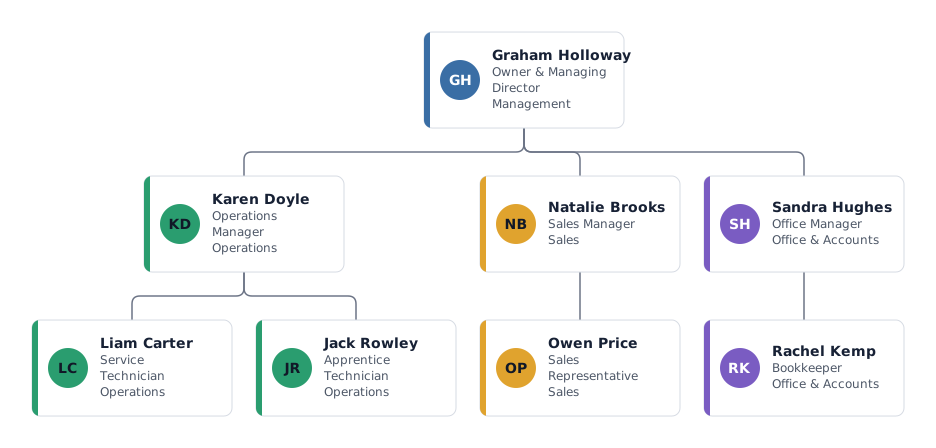
Word’s own template gallery (File → New, then search for “organization chart”) offers a few ready-made org chart documents, depending on your version and region. Underneath they are SmartArt or ordinary shapes, so they share the limits below. If you want a template with realistic roles that you can edit and export, the mivochart template gallery opens each one directly in the editor.
Where Word reaches its limits
SmartArt is designed for small diagrams inside a document. In general experience these are the points where it gets in the way:
- No import: every name is typed or pasted, and nothing is linked to your staff list.
- Text shrinks as the chart grows, and in our experience it is hard to keep readable on one page somewhere past 30 boxes.
- Layout is limited to the SmartArt gallery; moving single boxes by hand breaks the automatic alignment.
- No built-in way to mark open positions, part-time roles or departments, and dotted lines have to be drawn as separate shapes that do not follow the boxes.
- After every reorganisation you edit the diagram again by hand, with no record of what changed.
The faster way from your staff list
If the chart has more than a couple of dozen people or changes often, build it from your list and bring the result into Word as a finished image.
- Import your .xlsx or .csv staff list (name and manager columns are enough), or open a template.
- Check the column matching and the import report, then let the layout be drawn automatically.
- Export PNG or SVG and add it in Word with Insert → Pictures. SVG stays sharp in recent versions of Word.
- Need to print it on its own? Export a PDF. Editable PowerPoint (.pptx) and larger print sizes need a Pass or Pro; charts up to 25 people are free.
Frequently asked questions
Where is the org chart in Word?
Go to Insert → SmartArt, choose the Hierarchy category and pick Organization Chart. Name and Title Organization Chart and Picture Organization Chart are variants of the same layout.
How do I add an assistant box in a Word org chart?
Select the manager’s box, open the SmartArt Design tab and choose Add Shape → Add Assistant. The new box sits on a side connector below the manager.
Can Word build an org chart from an Excel list?
Not directly. You can paste a column of names into the SmartArt text pane and indent them by hand, but the chart is not linked to the list. To draw it from the list itself, import the spreadsheet into an org chart tool.
Is there a free org chart template for Word?
Word’s template gallery has a few, depending on version and region. mivochart’s templates are free to open and edit, and the result can be exported as an image for Word.
How do I fit a large org chart on one Word page?
Use landscape orientation, switch wide teams to a hanging layout and shorten job titles. If it is still too small to read, split the chart into an overview and one page per department.
Microsoft and Google are trademarks of their owners; mivochart is not affiliated.